Available tools
Custom connections to ChatGPT
Custom connections will always include the most up-to-date set of tools available, currently including:tracked_configsai_brand_insightsai_citation_insightskeyword_insights
Connections to Conductor’s ChatGPT marketplace plugin
Connections with the native ChatGPT plugin require fewer steps, but might not include access to all tools. Currently, the following tools are not available in the native ChatGPT plugin on the marketplace:keyword_insights
Configure Conductor in ChatGPT
Create a Custom Connection to ChatGPT
Create a Custom Connection to ChatGPT
Configuring a custom plugin in OpenAI’s ChatGPT currently requires you to: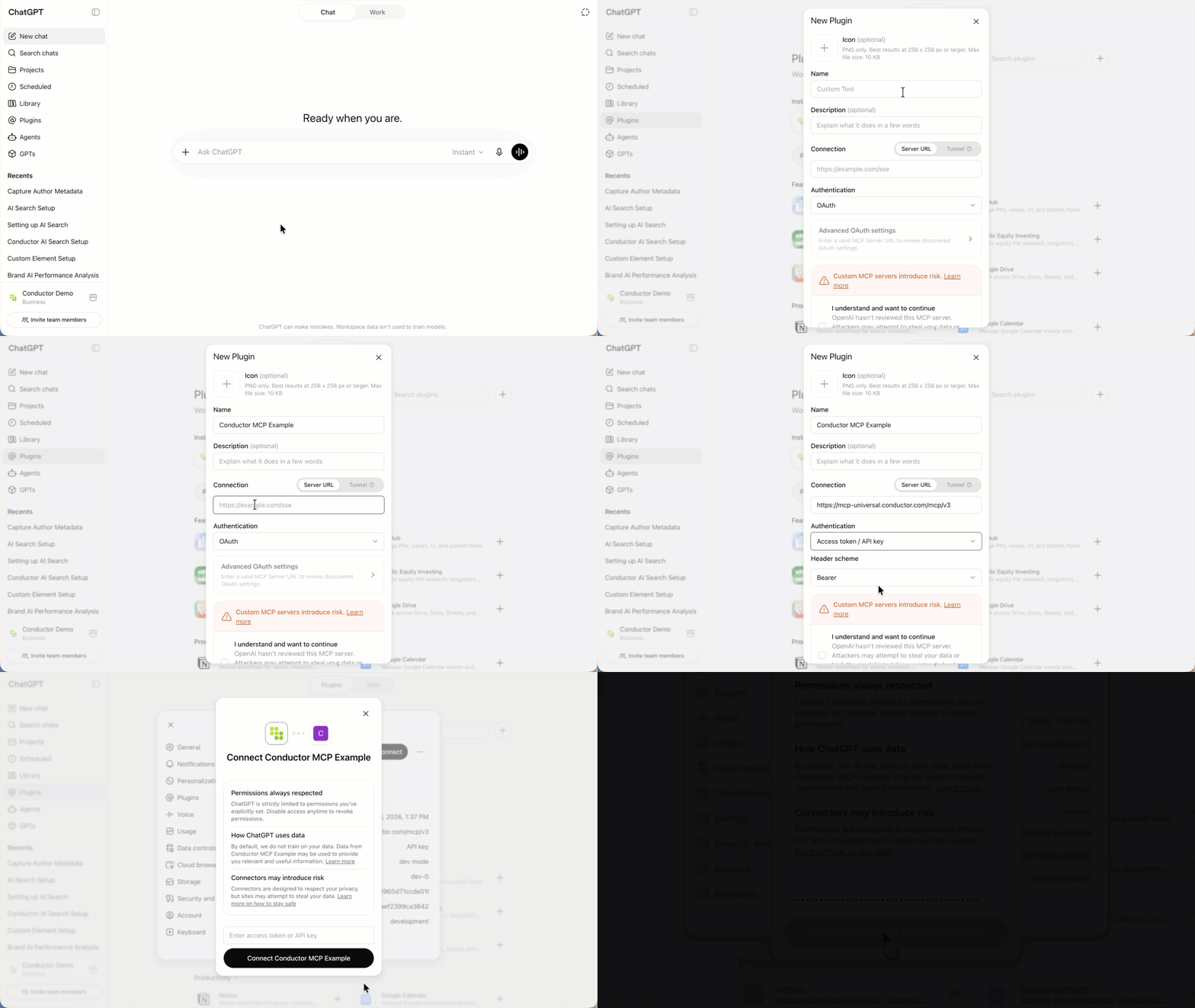
- Create an API token in the Conductor platform. Learn how: Authenticating Custom Connections
- Create a custom plugin in ChatGPT.
Verify Your ChatGPT Plan and Permissions
To set up this connection, you will need to have the ability to create plugins. Doing so requires:- Any of ChatGPT’s paid plans: Pro, Plus, Business, Enterprise and Education.
- Admin access.
Configure Your Plugin in ChatGPT
Before members of Business, Enterprise, and Education plans can use a custom plugin, an Admin user needs to perform the following steps to add the plugin to your organization’s Workspace. (If your organization uses multiple ChatGPT Workspaces, this configuration would have to be done in each.)- Go to ChatGPT.
- If you are not already, sign into the paid account you want to use to configure this integration. Be sure to use the correct account (likely an account belonging to your organization and not your personal ChatGPT account).
- From the navigation on the left, click Plugins.
- In the top-right, click the Plus (+) icon next to the search field.
- Complete the New Plugin form as follows:
- Name:
Conductor - Connection:
- Choose Server URL from the toggle above the Connection field.
https://mcp-universal.conductor.com/mcp/v3
- Authentication:
Access token / API key - Click to open the Advanced settings menu.
- Access token / API key:
YOUR_CONDUCTOR_API_TOKEN
- Name:
- Select the I understand and want to continue check box.
- Click Create. OpenAI will process your information, and you will be redirected to a Conductor authentication screen.
- Authenticate using your Conductor credentials. This may take some time.
Query Your Data with ChatGPT
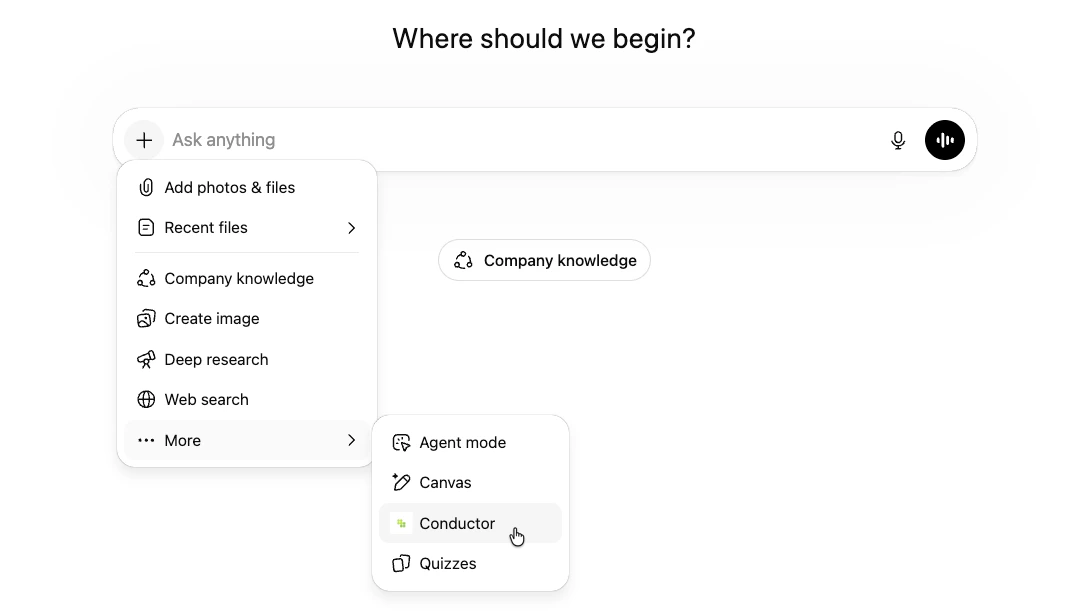
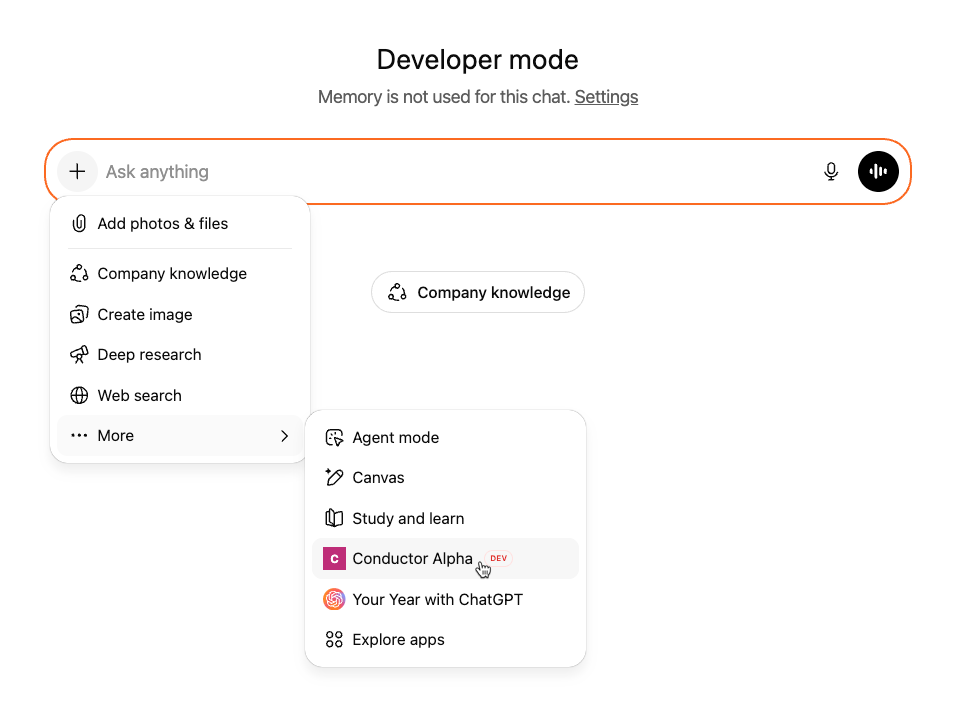
To access your data, click the + icon, and in the More menu, select your Conductor plugin.Create a Connection with the Native Conductor Plugin in ChatGPT
Create a Connection with the Native Conductor Plugin in ChatGPT
OpenAI allows organizations to choose whether non-Admin users may add specific Plugins and Apps to their ChatGPT accounts or whether they need to request access.To add Conductor’s plugin for ChatGPT, your organization’s ChatGPT Admins might need to allow the plugin to be installed on your account.For more information about provisioning and permissioning ChatGPT plugins, refer to OpenAI’s documentation.
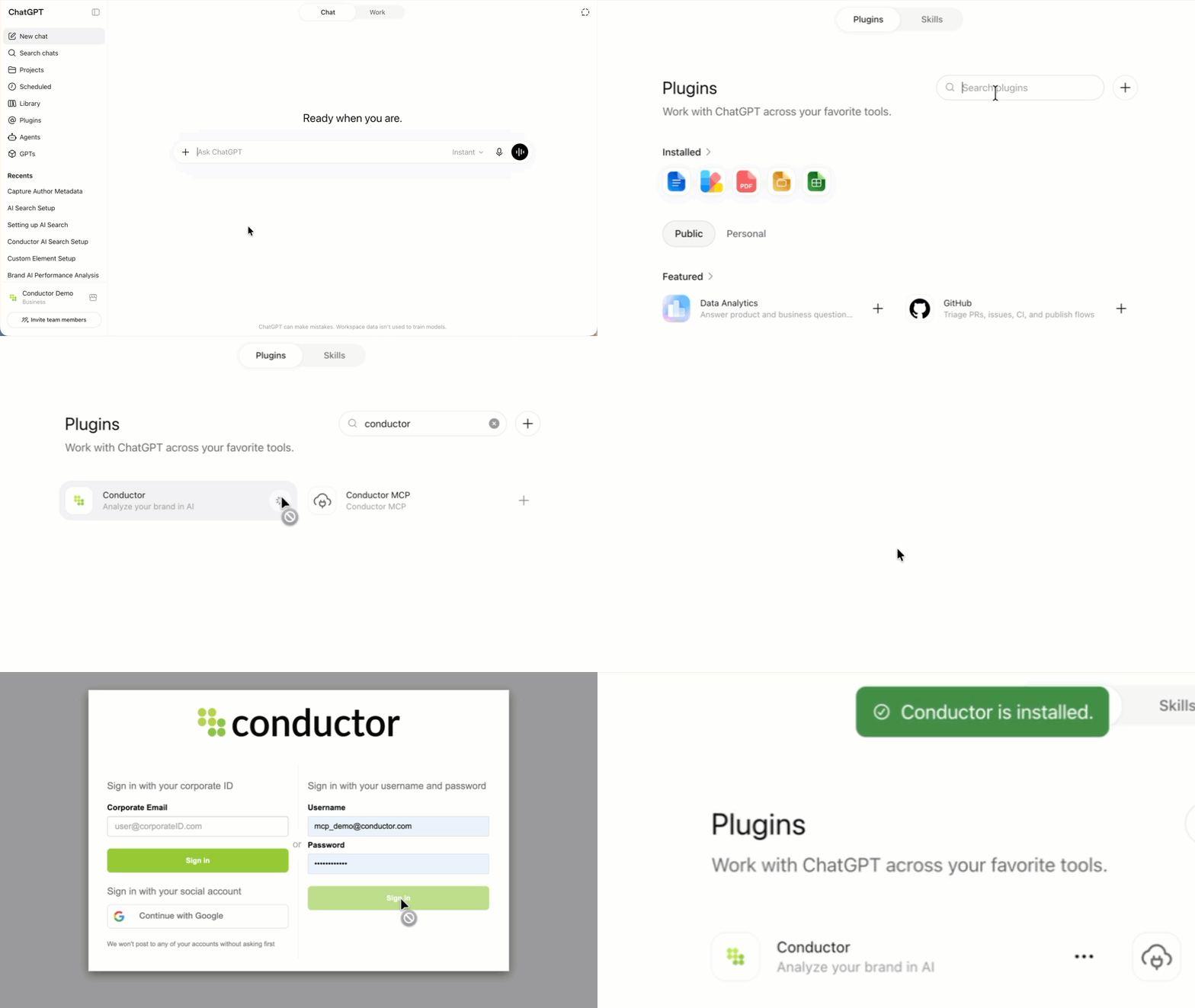
- Go to ChatGPT.
- If you are not already, sign into the paid account you want to use to configure this integration. Be sure to use the correct account (likely an account belonging to your organization and not your personal ChatGPT account).
- In the navigation menu on the left, click Plugins.
- Search for and select the Conductor app in the Plugins marketplace.
- Click Connect.
If you see Disabled by admin instead of the Connect button, contact your Workspace admin to enable the plugin for your organization as described above.
- Click Connect Conductor. You will be redirected to a Conductor authentication screen.
- Authenticate using your Conductor credentials.
Query Your Data with ChatGPT
To access your data, click the + icon, and in the More menu, select your Conductor Alpha app.