> ## Documentation Index
> Fetch the complete documentation index at: https://www.conductor.com/docs/llms.txt
> Use this file to discover all available pages before exploring further.
# Web Properties Setup in Conductor Creator and Conductor Intelligence
> Choose and configure the web properties for which Conductor collects data—domains, subdomains, subfolders, and more.
Web Properties is your home for choosing and configuring the different web properties for which Conductor collects data. You can:
* Add web properties for Conductor to track.
* Add comparison web properties from your competitors for Conductor to track.
* Manage those web properties over time.
* Configure tools and features for each web property, such as web analytics integrations, brands, page groups, and more.
You can create a web property group in the **Web Properties** activity in the Settings menu.
Not sure how to approach creating web property groups for your organization? Refer to the [How should I organize and optimize my web property groups?](/docs/platform/web-properties-faqs/#how-should-i-organize-and-optimize-web-property-groups) article for guidance.
**Settings** > [**Web Properties**](https://app.conductor.com/u/websites)
## Track a web property
Follow these instructions for adding a web property.
You can track any of the following types of web properties—where your content lives online—in Conductor:
* Your website's root domain
* A subdomain on your website
* A subfolder from your website
* Your organization's YouTube Channel
* An individual URL with content you consider part of your organization's digital presence. Note that this can include third-party sites that have content about your organization.
**What domain should I add?**
To track your entire website, use the root domain (example: [example.com](http://example.com)). Note that entering a domain like `www.example.com`will track only the `www.` subdomain, and no other subdomains on your site. As a result, if you want to track several subdomains on your site—like `blog.example.com`, `product.example.com`, et cetera—consider entering the root domain.
To track a web property:
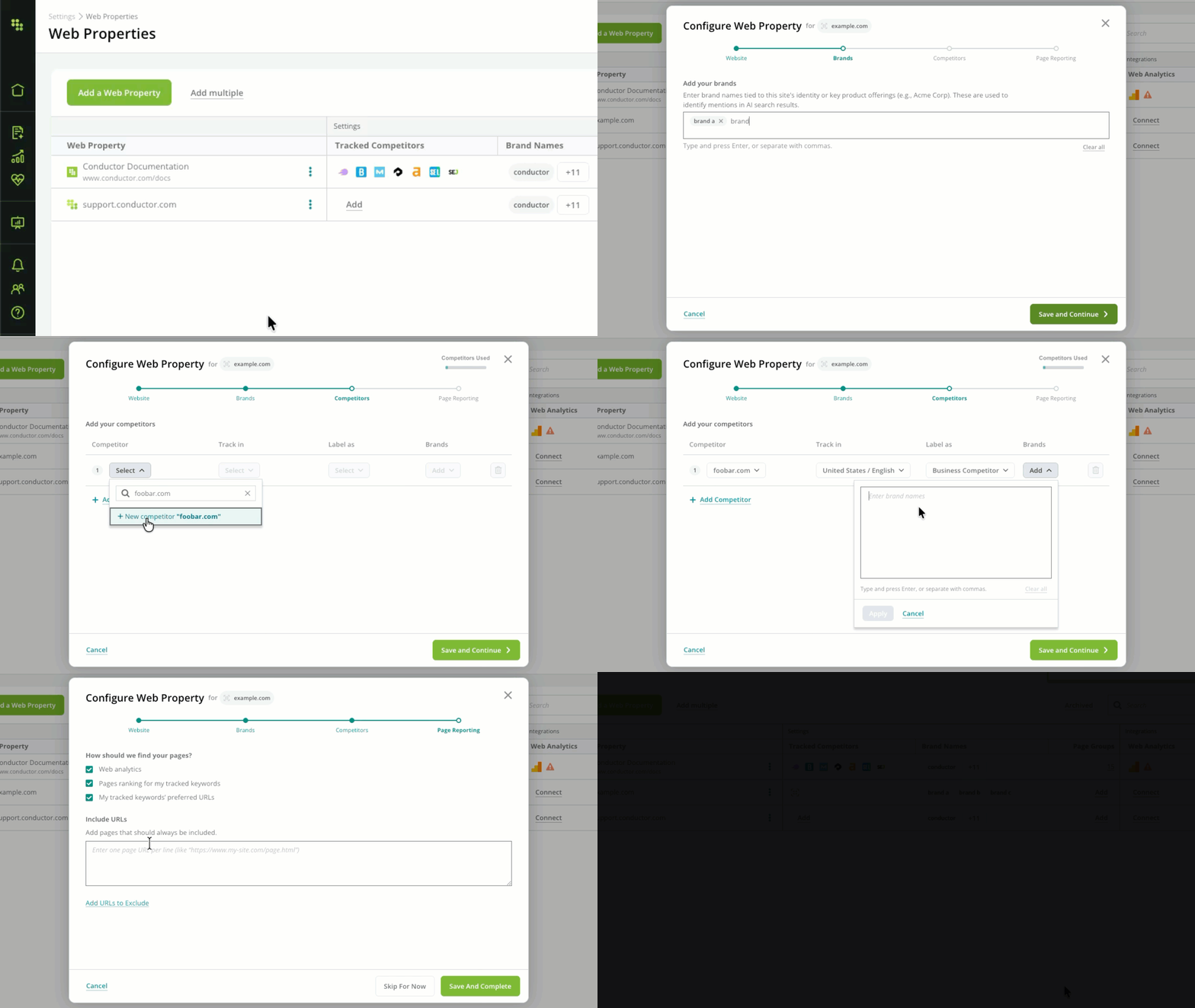
1. Click **Add Web Property**.
2. In the form that appears, enter the URL for the web property you want to add in the **Enter your site (or URL)** field. The value you enter here will determine the kind of web property Conductor offers as a potential option to track:
* Enter a root domain, subdomain, subfolder, or page from your website.
* Enter your organization's YouTube channel URL. To be recognized as a YouTube channel, the format should be: `youtube.com/channel/[Your YouTube Channel ID]`
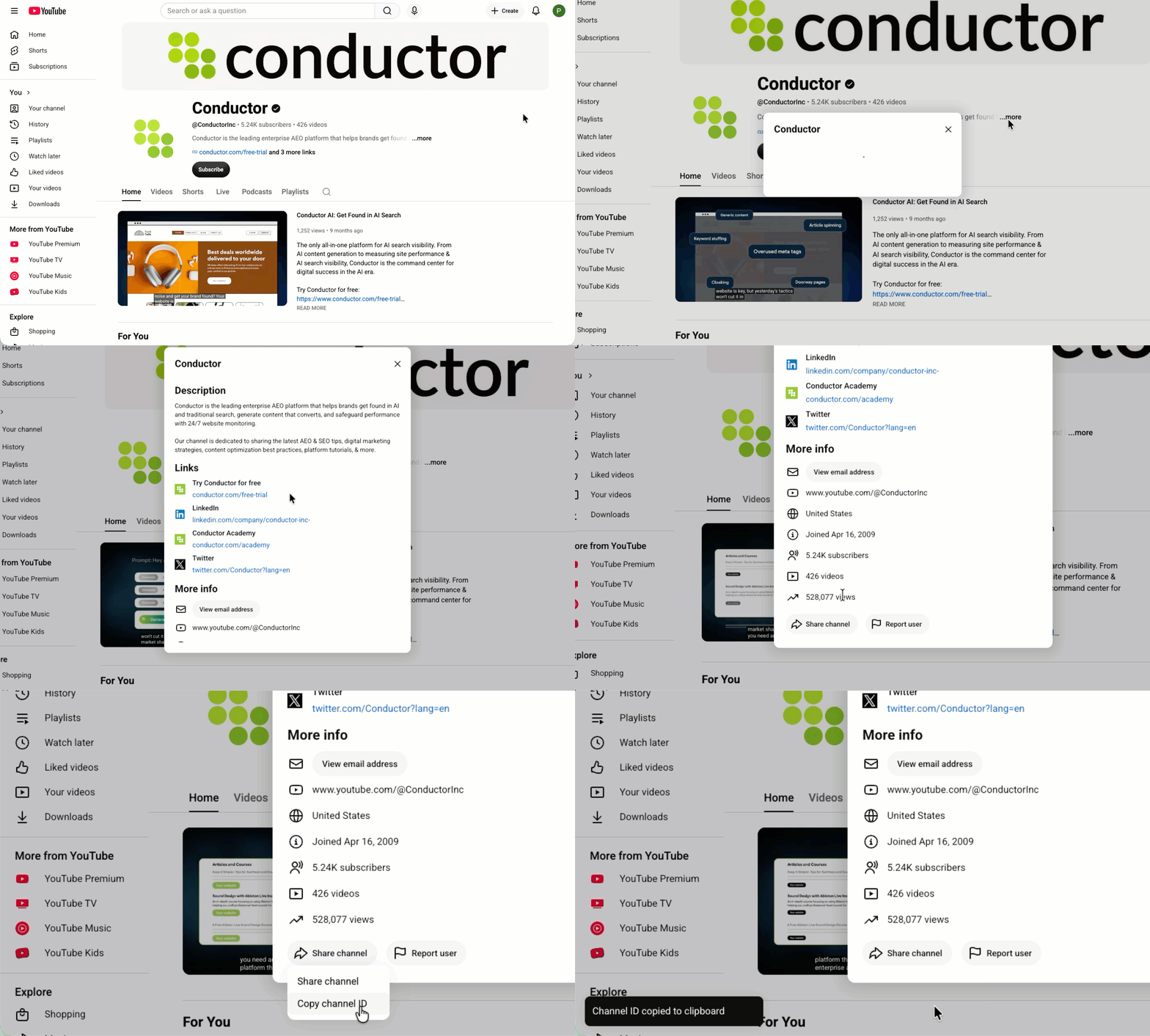
You can find your YouTube Channel ID on your channel home page. Click **More** in your description, then click the **Share channel** button and select **Copy Channel ID**. The ID is now on your clipboard.
 * Enter a URL for any page that you consider part of your organization's digital presence. For example, you might add a review page about your brand from a third-party site.
3. Click **Save and Continue**.
4. Enter the [brands](/docs/intelligence/ai-search-faqs/#what-is-a-brand-in-conductors-ai-search-performance-reporting) that represent the web property you are adding.
5. Click **Save and Continue**.
6. Add the competitors you want to track for this web property.
As with your own tracked web properties, you can track any of the following types of competitor properties in Conductor:
* A competitor's website's root domain
* A subdomain on a competitor's website
* A subfolder from a competitor's website
* A competitor's YouTube Channel
* An individual URL where a competitor has content you consider part of that organization's digital presence. Note that this can include third-party sites that have content about your competitors' organizations.
If competitors have been tracked for other properties the your account, you'll see a list of options. For each competitor, you'll choose:
* The locations and language to track.
* a label to describe the competitor.
* The competitors' brands. (If the competitor has been tracked for another property in your account, the brands configured for it will already be chosen. You can always edit these brands later.
7. Click **Save and Continue**.
8. Choose from where Conductor Intelligence discovers pages to report on in the [Pages](/docs/intelligence/pages-conductor-intelligence) and [Page Details](/docs/intelligence/page-details) reports:
You can choose **Skip For Now** and configure these selections later in the [Pages & Crawling Setup](/docs/intelligence/pages-and-crawling-setup) activity.
* **Web analytics:** pages from the web property will be discovered from your integrated web analytics profile.
* **Pages ranking for my tracked keywords:** pages from the web property will be discovered when they rank for the keywords you track.
* **My tracked keywords' preferred URLs:** pages from the web property will be discovered when they are listed as the [preferred URL](/docs/intelligence/tracked-keyword-faqs/#what-are-preferred-urls-for-a-keyword) for a tracked keyword—even if no pages rank for that keyword.
* **Add URLs to Include:** pages to always be included in your pages reporting.
* **Add URLs to Exclude:** pages you do not want to report on. Use specific URLs, paths, or robots.txt-style rules for determining pages to exclude.
9. Click **Save and Complete**.
* Enter a URL for any page that you consider part of your organization's digital presence. For example, you might add a review page about your brand from a third-party site.
3. Click **Save and Continue**.
4. Enter the [brands](/docs/intelligence/ai-search-faqs/#what-is-a-brand-in-conductors-ai-search-performance-reporting) that represent the web property you are adding.
5. Click **Save and Continue**.
6. Add the competitors you want to track for this web property.
As with your own tracked web properties, you can track any of the following types of competitor properties in Conductor:
* A competitor's website's root domain
* A subdomain on a competitor's website
* A subfolder from a competitor's website
* A competitor's YouTube Channel
* An individual URL where a competitor has content you consider part of that organization's digital presence. Note that this can include third-party sites that have content about your competitors' organizations.
If competitors have been tracked for other properties the your account, you'll see a list of options. For each competitor, you'll choose:
* The locations and language to track.
* a label to describe the competitor.
* The competitors' brands. (If the competitor has been tracked for another property in your account, the brands configured for it will already be chosen. You can always edit these brands later.
7. Click **Save and Continue**.
8. Choose from where Conductor Intelligence discovers pages to report on in the [Pages](/docs/intelligence/pages-conductor-intelligence) and [Page Details](/docs/intelligence/page-details) reports:
You can choose **Skip For Now** and configure these selections later in the [Pages & Crawling Setup](/docs/intelligence/pages-and-crawling-setup) activity.
* **Web analytics:** pages from the web property will be discovered from your integrated web analytics profile.
* **Pages ranking for my tracked keywords:** pages from the web property will be discovered when they rank for the keywords you track.
* **My tracked keywords' preferred URLs:** pages from the web property will be discovered when they are listed as the [preferred URL](/docs/intelligence/tracked-keyword-faqs/#what-are-preferred-urls-for-a-keyword) for a tracked keyword—even if no pages rank for that keyword.
* **Add URLs to Include:** pages to always be included in your pages reporting.
* **Add URLs to Exclude:** pages you do not want to report on. Use specific URLs, paths, or robots.txt-style rules for determining pages to exclude.
9. Click **Save and Complete**.
 ## Combine multiple web properties into a group
You might have other web properties that you want to report on as one entity. You can combine multiple web properties to create a group.
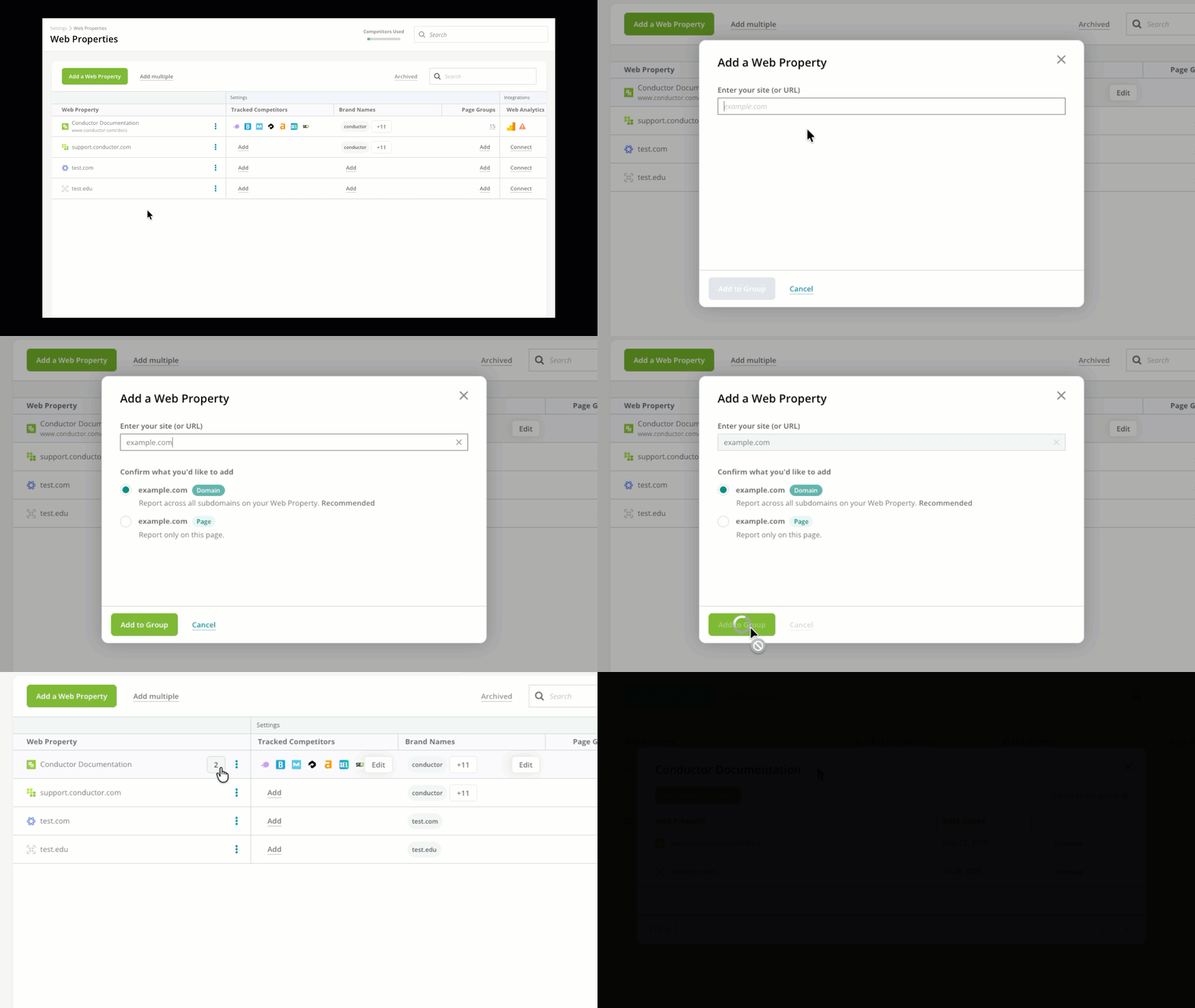
From the **Web Properties** activity:
1. Identify a tracked web property you want to use in a group.
2. Click the **More** (three-dot) icon and select **Add a Web Property**.
3. Enter another property you want to track as a group. Review the different types of properties you can add [above](#track-a-web-property).
4. Click **Add to Group**.
You can view the properties that belong to the group by clicking the button that appears next to the group name showing the number of properties in the group.
## Combine multiple web properties into a group
You might have other web properties that you want to report on as one entity. You can combine multiple web properties to create a group.
From the **Web Properties** activity:
1. Identify a tracked web property you want to use in a group.
2. Click the **More** (three-dot) icon and select **Add a Web Property**.
3. Enter another property you want to track as a group. Review the different types of properties you can add [above](#track-a-web-property).
4. Click **Add to Group**.
You can view the properties that belong to the group by clicking the button that appears next to the group name showing the number of properties in the group.
 ## Remove properties from a group
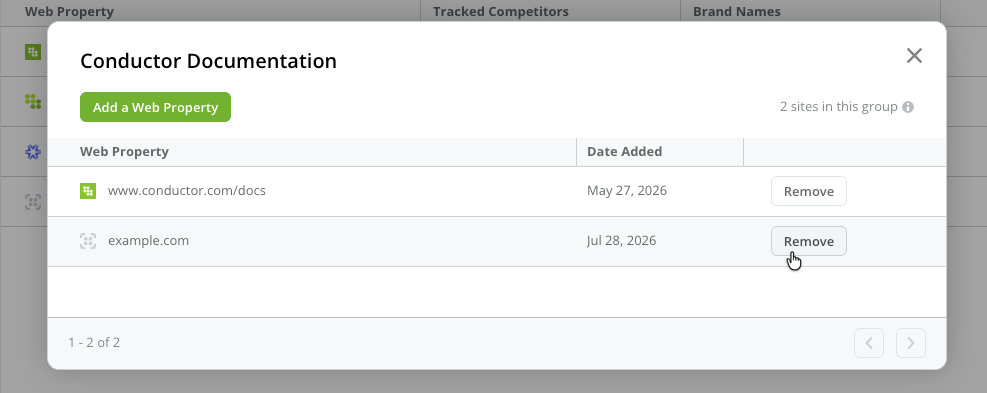
Click the button that appears next to the group name showing the number of properties in the group.
Click **Remove** for the property you want to remove from the group.
## Remove properties from a group
Click the button that appears next to the group name showing the number of properties in the group.
Click **Remove** for the property you want to remove from the group.
 ## Add multiple web properties in bulk
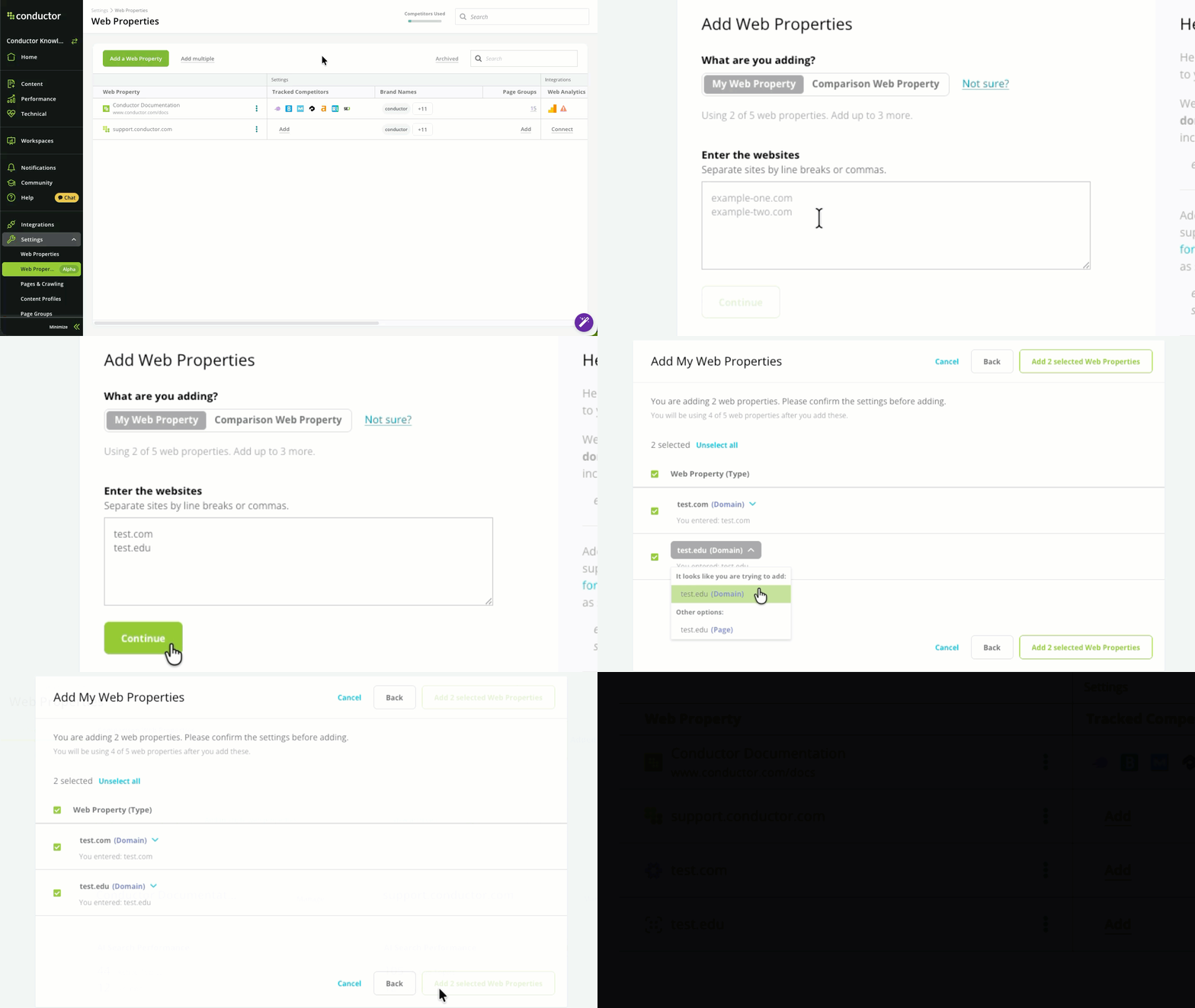
If you have many web properties you want to track, you can add them all at once. Just click the **Add multiple** link next to **Add a Web Property**.
## Add multiple web properties in bulk
If you have many web properties you want to track, you can add them all at once. Just click the **Add multiple** link next to **Add a Web Property**.
 ## Add or edit your tracked competitors
By naming your competitors in Conductor, you get more data to help provide a fuller picture of your performance relative to theirs.
From **Web Properties:**
1. Identify the property to which your want to add or edit tracked competitors.
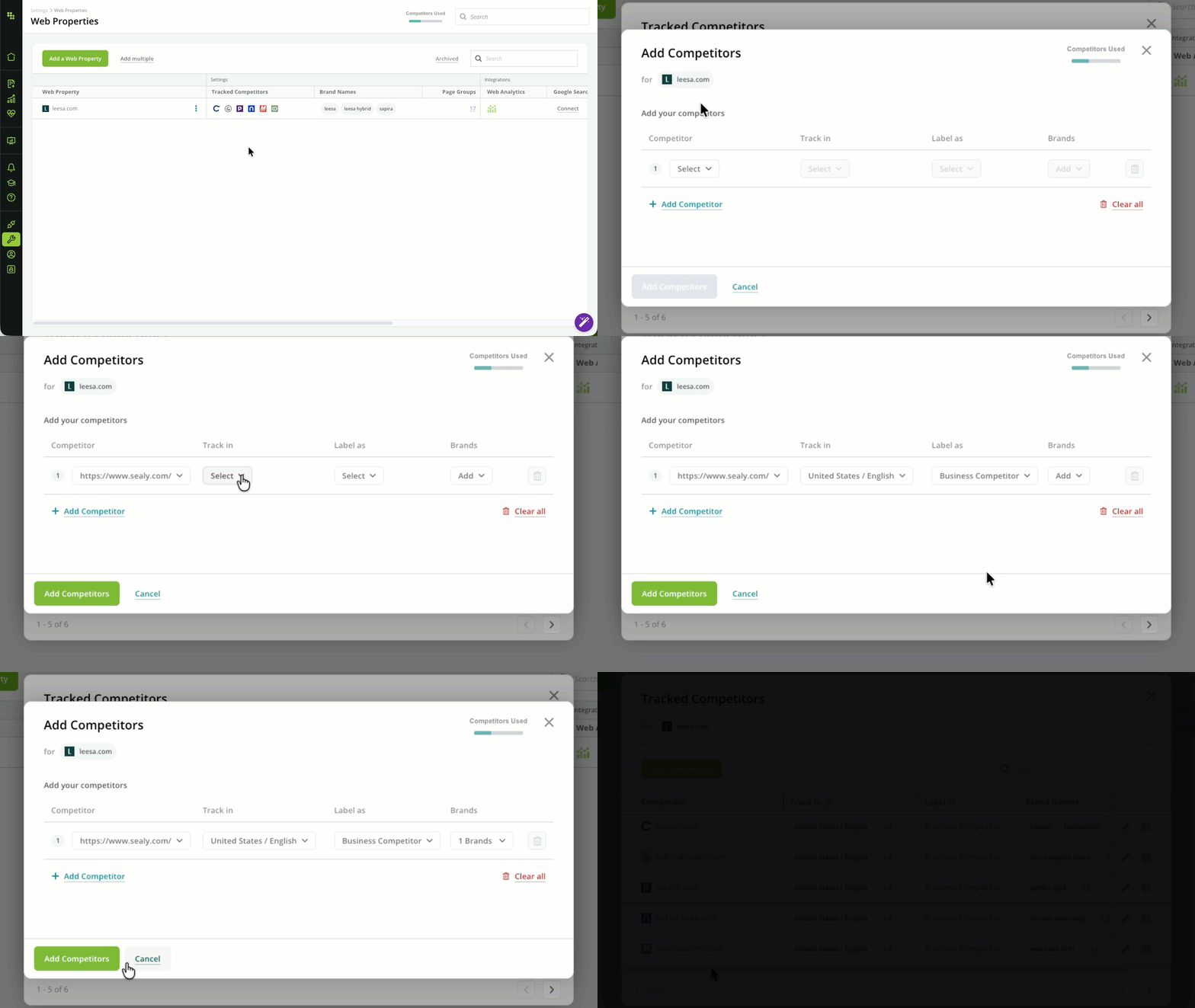
2. Hover over that property's **Tracked Competitors** column and click **Edit**.
3. In the form that appears:
* Click **Add Competitors** to add a competitor. You'll choose the competitor, along with:
* The locations and language to track.
* A label to describe the competitor.
* The competitors' brands. (If the competitor has been tracked for another property in your account, the brands configured for it will already be chosen. You can always edit these brands later.
As with *your* web properties, you can track several types of competitor properties:
* A competitor's website's root domain
* A subdomain on a competitor's website
* A subfolder from a competitor's website
* A competitor's YouTube Channel
* An individual URL where a competitor has content you consider part of that organization's digital presence. Note that this can include third-party sites that have content about your competitors' organizations.
## Add or edit your tracked competitors
By naming your competitors in Conductor, you get more data to help provide a fuller picture of your performance relative to theirs.
From **Web Properties:**
1. Identify the property to which your want to add or edit tracked competitors.
2. Hover over that property's **Tracked Competitors** column and click **Edit**.
3. In the form that appears:
* Click **Add Competitors** to add a competitor. You'll choose the competitor, along with:
* The locations and language to track.
* A label to describe the competitor.
* The competitors' brands. (If the competitor has been tracked for another property in your account, the brands configured for it will already be chosen. You can always edit these brands later.
As with *your* web properties, you can track several types of competitor properties:
* A competitor's website's root domain
* A subdomain on a competitor's website
* A subfolder from a competitor's website
* A competitor's YouTube Channel
* An individual URL where a competitor has content you consider part of that organization's digital presence. Note that this can include third-party sites that have content about your competitors' organizations.
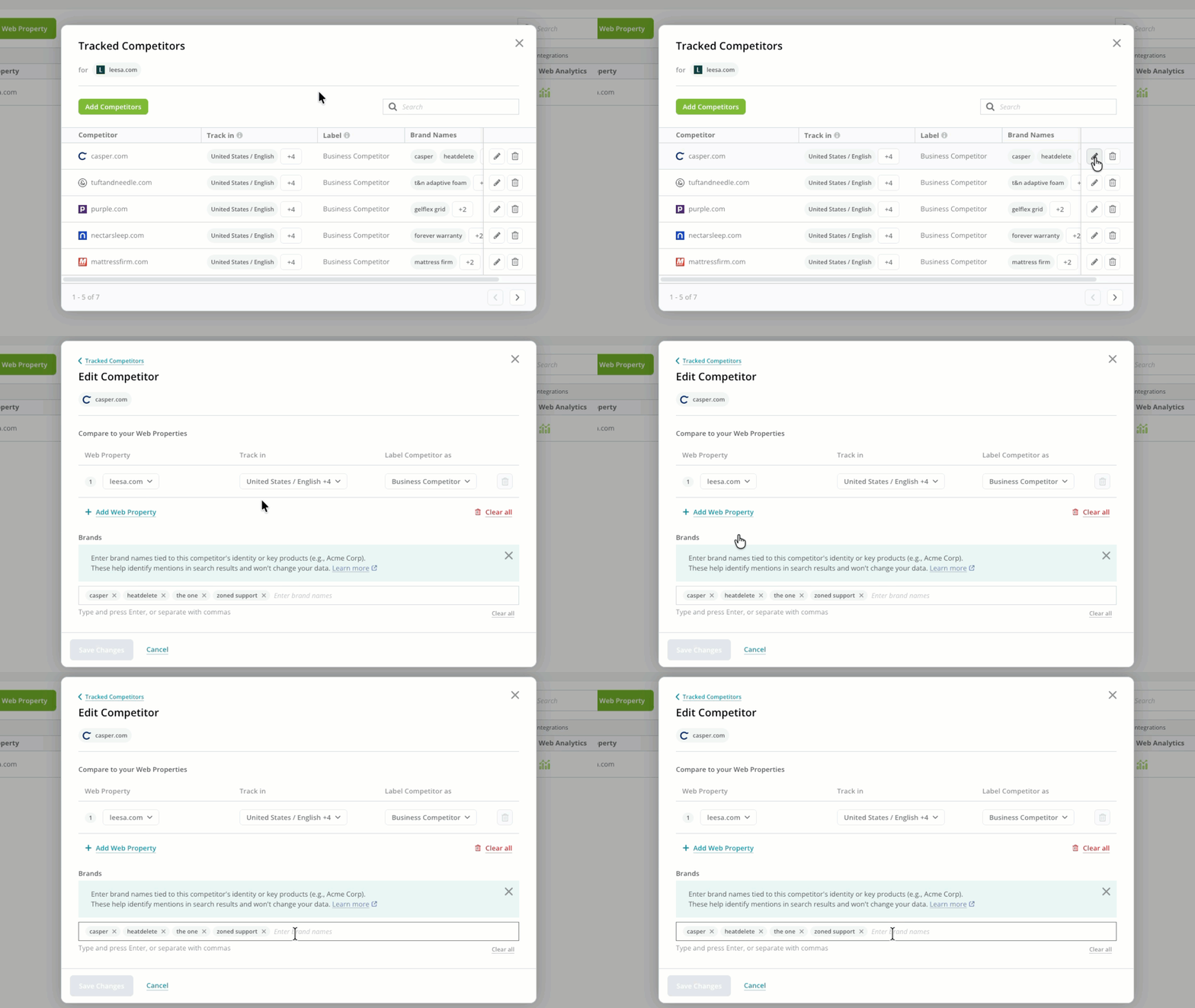
 * Click the **Edit** icon for existing competitors. From the **Edit Competitors** form, you can choose:
* The **Web Property** from your site to compare the competitor to.
* The locations and languages to **Track in**.
* What to **Label Competitor as**.
* To create a competitor web property group by clicking **Add Web Property**.
* To add or remove [Brands](/docs/intelligence/ai-search-faqs/#what-is-a-brand-in-conductors-ai-search-performance-reporting) associated with the competitor.
* To remove a competitor from a group.
* Click the **Edit** icon for existing competitors. From the **Edit Competitors** form, you can choose:
* The **Web Property** from your site to compare the competitor to.
* The locations and languages to **Track in**.
* What to **Label Competitor as**.
* To create a competitor web property group by clicking **Add Web Property**.
* To add or remove [Brands](/docs/intelligence/ai-search-faqs/#what-is-a-brand-in-conductors-ai-search-performance-reporting) associated with the competitor.
* To remove a competitor from a group.
 ## Add or edit your tracked brands
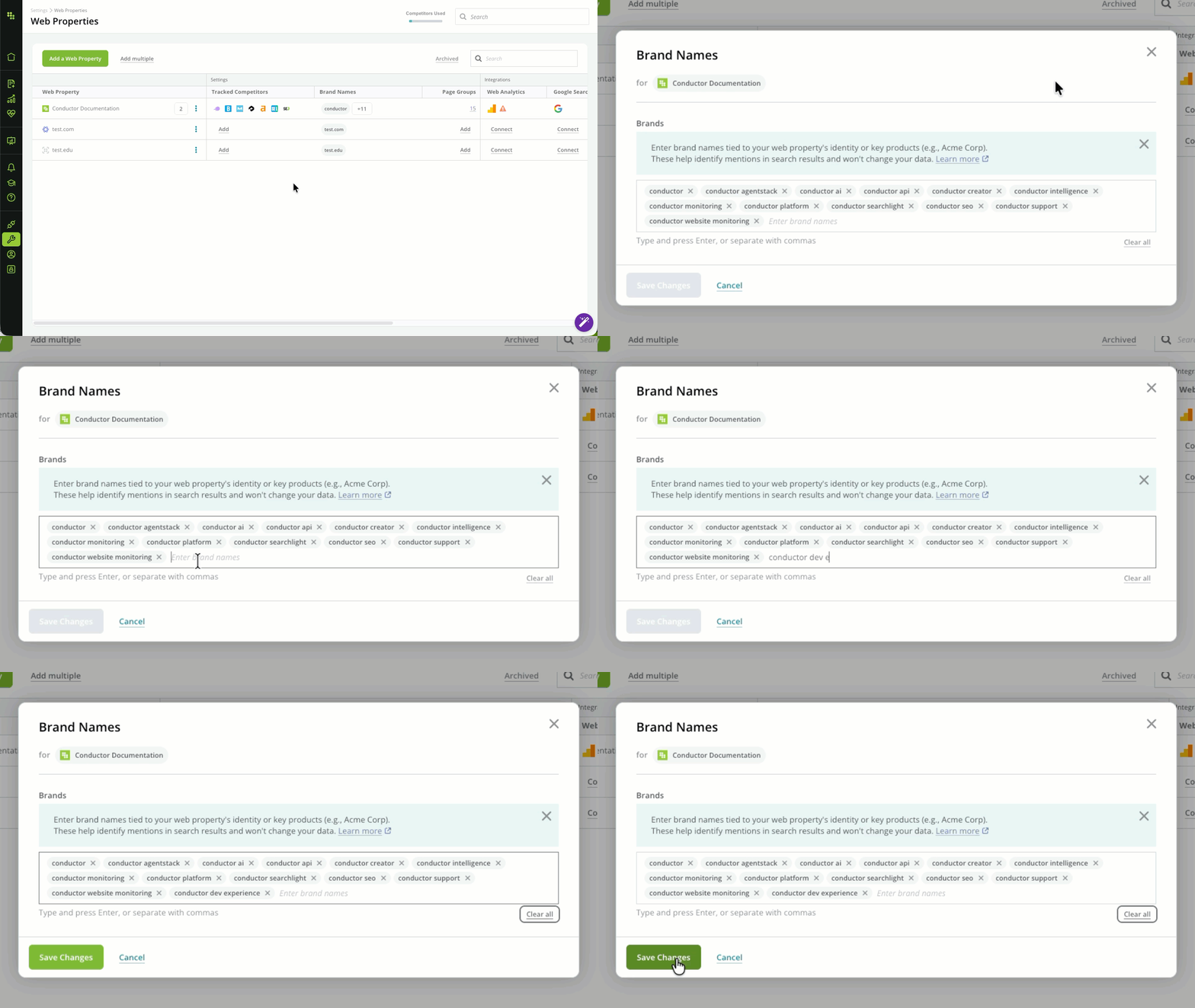
If you want to add or remove [brands](/docs/intelligence/ai-search-faqs/#what-is-a-brand-in-conductors-ai-search-performance-reporting) from tracking:
1. Find the domain for which you want to edit the tracked brands.
2. Hover over the **Brand Names** column and click **Edit**.
3. Make your updates by adding or removing brands from the list.
4. Click **Save Changes**.
## Add or edit your tracked brands
If you want to add or remove [brands](/docs/intelligence/ai-search-faqs/#what-is-a-brand-in-conductors-ai-search-performance-reporting) from tracking:
1. Find the domain for which you want to edit the tracked brands.
2. Hover over the **Brand Names** column and click **Edit**.
3. Make your updates by adding or removing brands from the list.
4. Click **Save Changes**.
 ## Review and manage other aspects of your tracked web properties
### Review your page groups
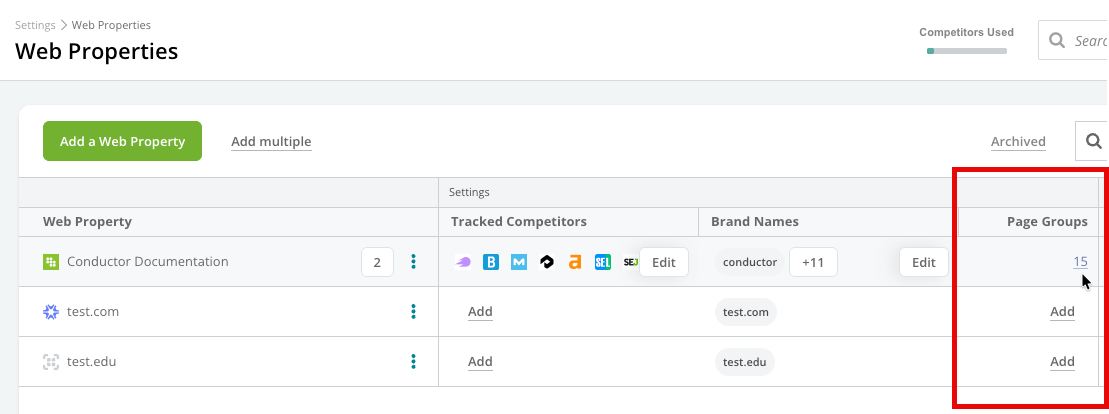
You can see the total number of page groups belonging to each web property.
If you want to make updates to the property's page groups, just click the linked value in the **Page Groups** column.
## Review and manage other aspects of your tracked web properties
### Review your page groups
You can see the total number of page groups belonging to each web property.
If you want to make updates to the property's page groups, just click the linked value in the **Page Groups** column.
 ### Review your integrations
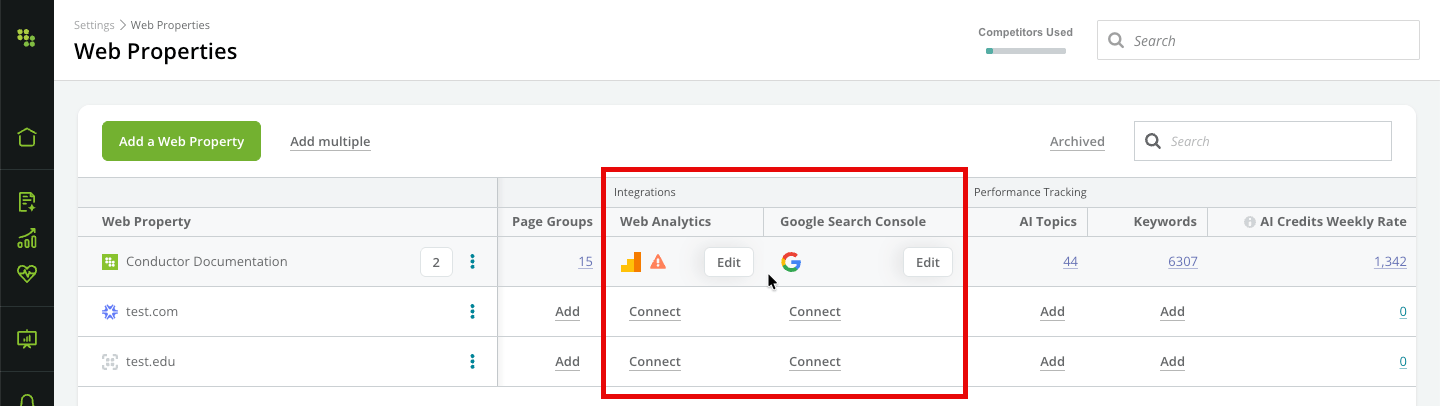
In the **Integrations** column group, you can see whether you have integrated your **Web Analytics** or **Google Search Console**—and whether there are any errors with an existing integration.
* If there is a **warning** icon, this indicates an error, which you can follow up on by hovering and clicking **Edit**.
* If no existing integration existing, you can start setting up an integration by clicking **Connect**.
### Review your integrations
In the **Integrations** column group, you can see whether you have integrated your **Web Analytics** or **Google Search Console**—and whether there are any errors with an existing integration.
* If there is a **warning** icon, this indicates an error, which you can follow up on by hovering and clicking **Edit**.
* If no existing integration existing, you can start setting up an integration by clicking **Connect**.
 ### Review your performance tracking
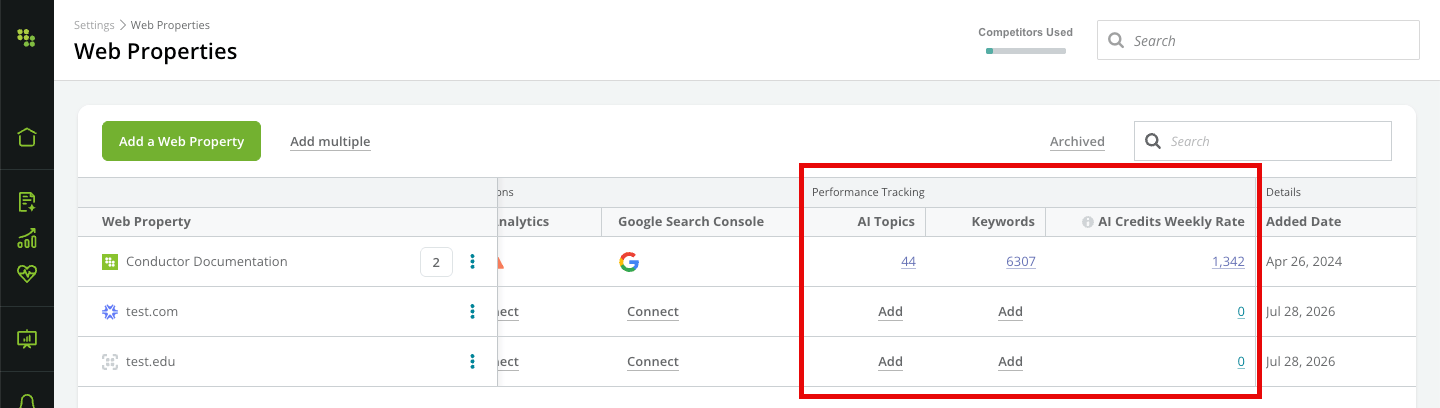
For each web property, you can review the number of:
* Tracked **AI Topics**.
* Tracked **Keywords**.
* AI credits you use weekly.
Clicking the values in each of the **Performance Tracking** column group's columns will take you to the relevant settings activity: [Topics and Prompts](/docs/intelligence/ai-search-setup) for **AI Topics** and **AI Credits Weekly Rate** or [Tracked Keywords](/docs/intelligence/tracked-keyword-setup) for **Keywords**.
### Review your performance tracking
For each web property, you can review the number of:
* Tracked **AI Topics**.
* Tracked **Keywords**.
* AI credits you use weekly.
Clicking the values in each of the **Performance Tracking** column group's columns will take you to the relevant settings activity: [Topics and Prompts](/docs/intelligence/ai-search-setup) for **AI Topics** and **AI Credits Weekly Rate** or [Tracked Keywords](/docs/intelligence/tracked-keyword-setup) for **Keywords**.
 ## Archive tracked web properties
Depending on your reporting needs over time, you might want to remove web properties from your tracking. You can do this by archiving these web properties.
Note that archiving a web property:
* Deactivates any tracked keywords associated with the web property.
* Removes it from reports, including both current and historical tracked keyword data. Note that—while the data is removed from report interfaces—your historical tracked keyword data (up to 24 months) is not deleted when you archive a related web property.
* Archiving a web property group removes all its constituent properties from tracking.
To archive a web property:
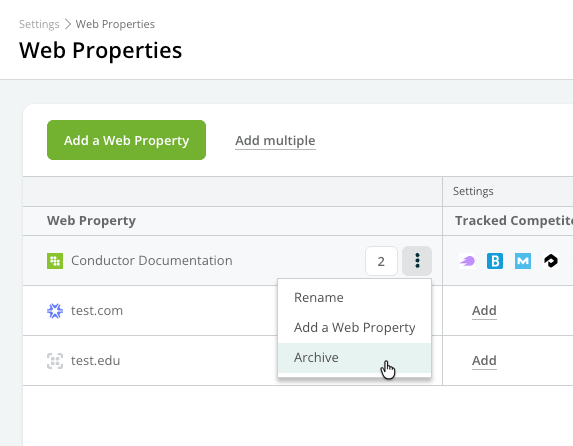
1. Find the web property and click the **More** (three-dots) icon.
2. Select **Archive**.
3. Click **Archive** to confirm.
## Archive tracked web properties
Depending on your reporting needs over time, you might want to remove web properties from your tracking. You can do this by archiving these web properties.
Note that archiving a web property:
* Deactivates any tracked keywords associated with the web property.
* Removes it from reports, including both current and historical tracked keyword data. Note that—while the data is removed from report interfaces—your historical tracked keyword data (up to 24 months) is not deleted when you archive a related web property.
* Archiving a web property group removes all its constituent properties from tracking.
To archive a web property:
1. Find the web property and click the **More** (three-dots) icon.
2. Select **Archive**.
3. Click **Archive** to confirm.
 ## Restore archived tracked web properties
Web properties can be restored from being archived.
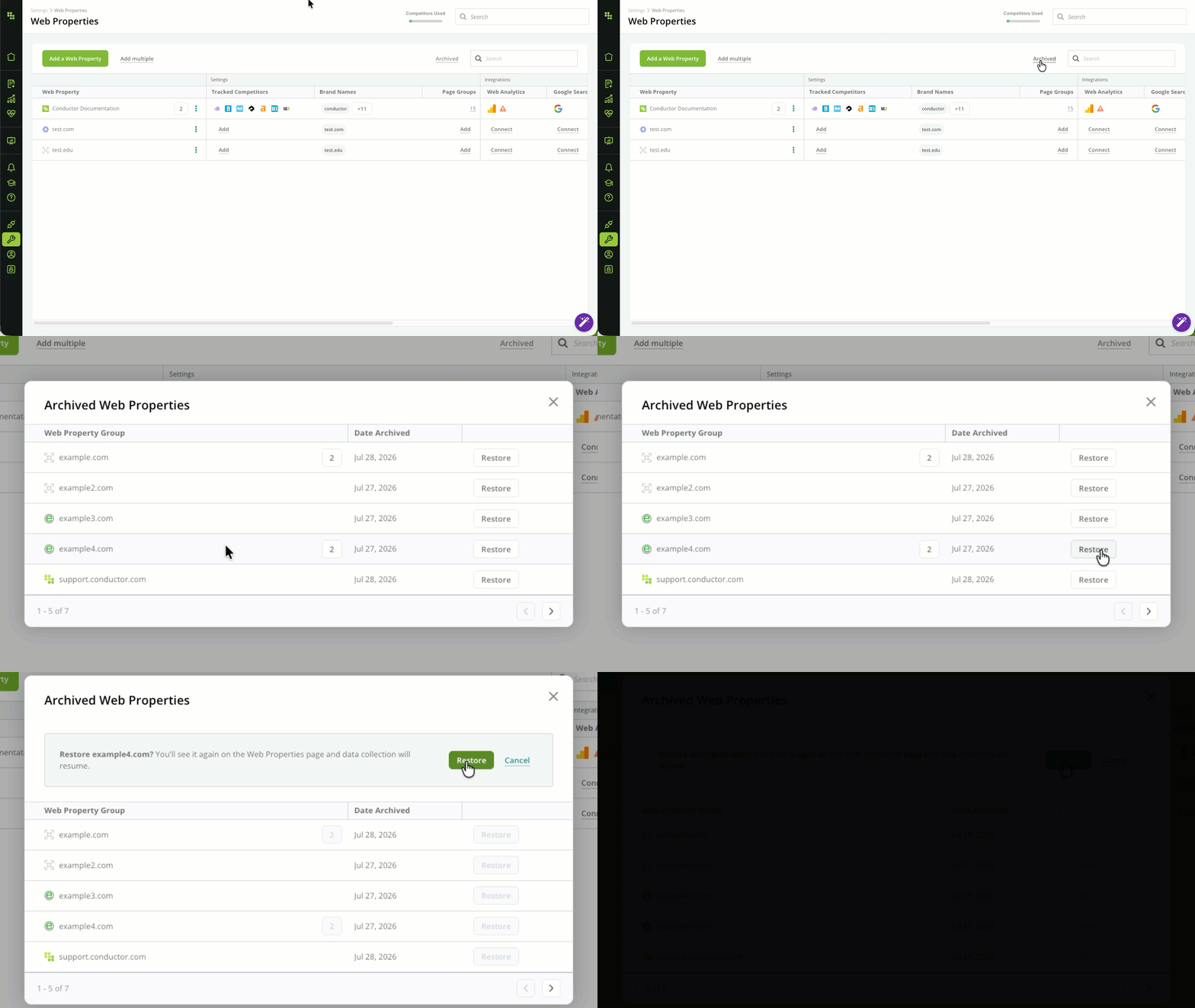
1. Click the **Archived** link.
2. Find the property and click **Restore**.
3. Click **Restore** to confirm.
## Restore archived tracked web properties
Web properties can be restored from being archived.
1. Click the **Archived** link.
2. Find the property and click **Restore**.
3. Click **Restore** to confirm.