> ## Documentation Index
> Fetch the complete documentation index at: https://www.conductor.com/docs/llms.txt
> Use this file to discover all available pages before exploring further.
# Web Properties FAQs
> Answers to common questions about adding and managing the web properties Conductor tracks on your behalf.
## Web Property Basics
The content you create for your audience exists across many different kinds of sites, hosted on different domains, subdomains, or subfolders.
Additionally, you might have content that reflects your digital presence on domains you don't even own, like branded content on third-party sites.
In Conductor, You can monitor content on these different sites by tracking each as a web property.
**Comparisons tracked against multiple web property–search engine combinations**
Comparing a web property across multiple search engines or languages associated with a single tracked web property counts as multiple comparisons against your total number. You cannot create a comparison web property group if you have reached the total number of tracked comparison web property groups for your account. For example, comparing a comparison web property against *example.com* on Google US / English, Google Canada / English, and Google Canada / French would count as three comparison web properties.
**Comparison web properties must be compared to tracked web property groups**
You cannot create a comparison web property group nor add a comparison web property to a group without choosing a tracked web property group and search engine against which you want to compare it. Comparison groups do not appear in platform reports unless they are associated with a web property group and search engine.
**You cannot compare overlapping web properties**
Comparison web properties cannot be compared to a tracked web property group that includes overlapping pages. For example, you cannot compare comparison property "*blog.example.com*" to your tracked web property group "*example.com*"*.*
Additionally, you cannot compare multiple comparison web properties to a single tracked web property group if those comparison web properties have overlapping pages. For example, you cannot compare both "*blog.example.com*" and "*example.com*" to a tracked web property group.
**Archived comparison web properties must have comparisons to active web properties to be unarchived**
You cannot unarchive a comparison web property or web property group that has no comparisons to an active tracked web property group.
You add combine multiple web properties together into a web property group. Groups contain web properties that you want to track together—so you can report on their performance on search engine results pages for a single set of keywords, and see a more holistic view of that performance.
You might create a web property group for:
* A specific brand your organization owns.
* Different regions your organization operates in.
* Separate business units.
* Any number of other reasons that provide value when you track separate web properties together.
You can create web property groups in the [Web Properties](/docs/platform/web-properties-setup-in-conductor-creator-and-conductor-intelligence/) activity.
#### What do I need to know about web property groups?
**Maximum number of web properties in a single group**
There is no limit to the number of web properties that can be added to a single web property group.
**A given web property may belong to only one group**
You cannot add a web property if that web property already belongs to an existing web property group.
Web properties are a combination of domain, search engine, and language. Each set counts against the total you can track in Conductor as determined by your contract.
For example, the following each would count against your total:
* example.com tracked on Google US in English
* example.com tracked on Google US in Spanish
* example.com tracked on Google Canada in English
## Competitor Web Properties
Competitor web properties represent traditional business competitors, industry competitors, online competitors, or other web properties for which you want to gather data to compare with your tracked web properties. Account owners determine which comparison web properties Conductor collects data for in the [Web Properties](/docs/platform/web-properties-setup-in-conductor-creator-and-conductor-intelligence/) activity.
After you configure a competitor web properties, Conductor tracks them similarly to how it tracks your web properties, identifying where they rank in the top 100 positions for the keywords tracked in your account.
By naming competitors, you get more data to help provide a fuller picture of your performance relative to theirs.
Comparison web properties represent the content you want to know more about but will not measure as your own. These might be your competitors, but may be any site or page that you want to see data for in relation to your own content.
Just like the examples listed above for your web properties, you can track competitor web properties, regardless of where they live online. It might be:
* A domain belonging to your organization's biggest brick-and-mortar competitor.
* A competitor's YouTube channel.
* An SEO competitor that fights for rankings in Google, but is not an actual business competitor.
Conductor provides information about Top Rankers and competitors. Both are important, but it's important to understand the difference.
**Top Rankers**
Top Rankers represent those pages (outside of your own) that are ranking in certain positions on a search engine results page (SERP). Top Rankers include:
* For tracked Google searches, any result on the first page of results.
* For tracked other searches, any result in the first ten positions of a SERP.
**Competitors**
Competitor web properties—which you can compare against your web properties tracked in Conductor—represent the web properties belonging to your competitors. Designating web properties for comparison tells Conductor to collect keyword data for that content from the top 100 positions on search engine results pages.
#### Why should I care about Top Rankers if I already know who my competitors are?
Top Rankers are important because they represent your online competition, even if they aren't traditional business competitors. Top Rankers are the ones who could be knocking you out of the top positions in Google, making you less visible in the online space. Top Rankers might not be (and often aren't) the same web properties you've added as Competitors in Conductor.
Keep an eye on Top Rankers: are particular domains showing up in the top Google SERP positions? Consider adding them as competitor web properties so you will have more data available to help give you the competitive advantage.
#### Where in Conductor can I see data for Top Rankers and Comparison Web Properties?
The reports listed below represent those that include data for either comparison web properties, top rankers, or both.
| | | |
| --------------------------------------------------- | ---------------------------- | ---------------- |
| **Reports** | **Competitor Web Property**? | **Top Rankers?** |
| [Rank Comparisons](/docs/intelligence/rank-comparisons/) | Yes | Yes |
| [Research](/docs/creator/research/) | Enter any site | |
| [Market Share](/docs/intelligence/market-share/) | Yes | Yes |
| [Keywords](/docs/intelligence/keywords/) | Yes | Yes |
## Managing Web Properties
The way you configure your web properties should reflect how you want to report on and understand your data in Conductor. Depending on what kinds of properties your organization tracks, you might find there are a number of different configurations that make sense. Refer to the examples below for some sample scenarios that may provide guidance.
**Examples for Your Web Properties**
*Report on Your Brand's Holistic Digital Presence*
Configure a web property that includes your primary web property (for example, the domain you track with your web analytics platform) and any other web properties that represent your brand, including YouTube Channels, social accounts, microsites, or other pages on third-party sites.
By tracking all this content in a single web property group, you'll be able to see a more complete picture of your brand's performance across Conductor's various search visibility reports.
*Aggregate Your Social Reporting Across Multiple Social Networks*
Curious to know how your social channels perform for your tracked keywords? Aggregate all your channels in one web property. Then review the [Keywords](/docs/intelligence/keywords/) report to see how your profiles perform in search.
*Aggregate Your Brand Reporting Across Multiple Locations*
Have separate domains, subdomains, or subfolders for the different geographic regions you operate in? Aggregate all of these web properties into a single web property group. Then, you can use roll-up reporting across your location-specific keywords in reports like [Keywords](/docs/intelligence/keywords/) and [Locations](/docs/intelligence/locations/) to see your performance in aggregate.
**Examples for Competitor Web Properties**
*Report on a Competitor's Holistic Digital Presence*
Configure a competitor web property that includes all the sites that represent a specific competitor's brand, including YouTube Channels, social accounts, microsites, or other pages on third-party sites.
By tracking all this content in a single competitor group, you'll be able to see a more complete picture of this competitor's performance across Conductor's various search visibility reports.
*Aggregate a Competitor's Web Properties Across Multiple Brands*
If you have a competitor that operates multiple brands that compete with your brand, you can aggregate that competitor's brands into a single group. Then, use reports like [Market Share](/docs/intelligence/market-share/) to compare this group to your own domain to better understand that competitor's full effect on your rankings.
*Aggregate Reporting on a Competitor's Brand Across Multiple Locations*
Does a competitor of yours have separate domains, subdomains, or subfolders for the different geographic regions they operate in? Aggregate all of these web properties into a single comparison group. Then, you can use roll-up reporting across your tracked location-specific keywords in reports like [Keywords](/docs/intelligence/keywords/) to drill down and see where these competitor sites appear in search for the keywords you track.
Data appears for individual web properties only once Conductor has had enough time to [publish data](/docs/intelligence/conductors-data-collection-and-crawling-faqs/#when-does-conductor-crawl-and-publish-data) for those configured keywords. To avoid waiting an extra week for data to be published, [add keywords](/docs/intelligence/tracked-keyword-setup/) early in the week to give Conductor enough time to collect data.
## Adding Web Properties
You can track new content in the [Web Properties](/docs/platform/web-properties-setup-in-conductor-creator-and-conductor-intelligence/) activity (**Settings** > **Web Properties**). Your account determines how many web properties you can track in Conductor.
If you want to track more than your current limit, you can purchase more as an add-on. [Contact Support](/docs/platform/getting-help-with-conductor-products/) to learn more.
Only letters (a-z), digits (0-9), dashes (-), and dots (.) are valid in the domains, subdomains, subfolders, and pages you add to track with Conductor.
Conductor collects all the content from a root domain you track as a web property, including all subdomains or subfolders.
By entering only the root domain (e.g., example.com), Conductor gathers data for all pages, subfolders, and subdomains. However, if you specifically track a subdomain—such as [www.example.com](http://www.example.com) or store.example.com—Conductor collects only the data from that subdomain.
Thinking about tracking a subfolder among your content or competitor properties in Conductor? Here are some things to consider:
**Analytics Support**
When you track a subfolder within your site, Conductor does not automatically filter your site's integrated web analytics data to show only data related to that subfolder. This means that you'll need to create a segment or specific data stream in your analytics platform that you can then integrate with the related tracked subfolder in Conductor.
**Allowable Subfolder Entries**
Only subfolders defined with a forward slash can be tracked (For example: abc.com/example). No fragments (abc.com#example) or query parameters (abc.com?example) may be entered.
Likewise, Conductor cannot support a subfolder path that includes anything besides a simple text string.
**Best Practices for Tracking Subfolders**
In some cases, configuring a tracked subfolder may not be your best option, because it limits the scope of your keyword rank data. When determining whether your content should be configured as a root domain, a subdomain, a subfolder, or even just a page, consider these questions:
* Are the primary Conductor users at your organization responsible for overseeing the performance of all pages belonging to the domain or just the content found in the subfolder?
* Who is the intended audience for the subfolder content? Is it a different audience that would consume other non-subfolder tracked content configured in the account?
* Is it important to isolate the data into distinct subfolders? For example, should you use subfolders to keep your data isolated if your company has different regional AEO or SEO teams responsible for each market, and each team cares only about the data relevant to their market when they use Conductor?
* If your subfolders are structured along regional markets, might having different keywords tracked in the different search engine–language contexts be sufficient?
* Does your organization have analytics segments that mirror the desired subfolder content configuration(s) already?
* Instead of configuring subfolders, is the more desired experience to be able to filter keyword performance by URL groupings?
These questions can help guide your decision on whether to track a subfolder rather than tracking a broader scope with a root domain, top-level domain, or subdomain. However, if you have a question or need guidance, contact Conductor Customer Success.
Yes. For most reports, Conductor includes data for subdomains with the data it collects for root domains. However, in most reports, this data is not differentiated from root domain data or other data from other subdomains.
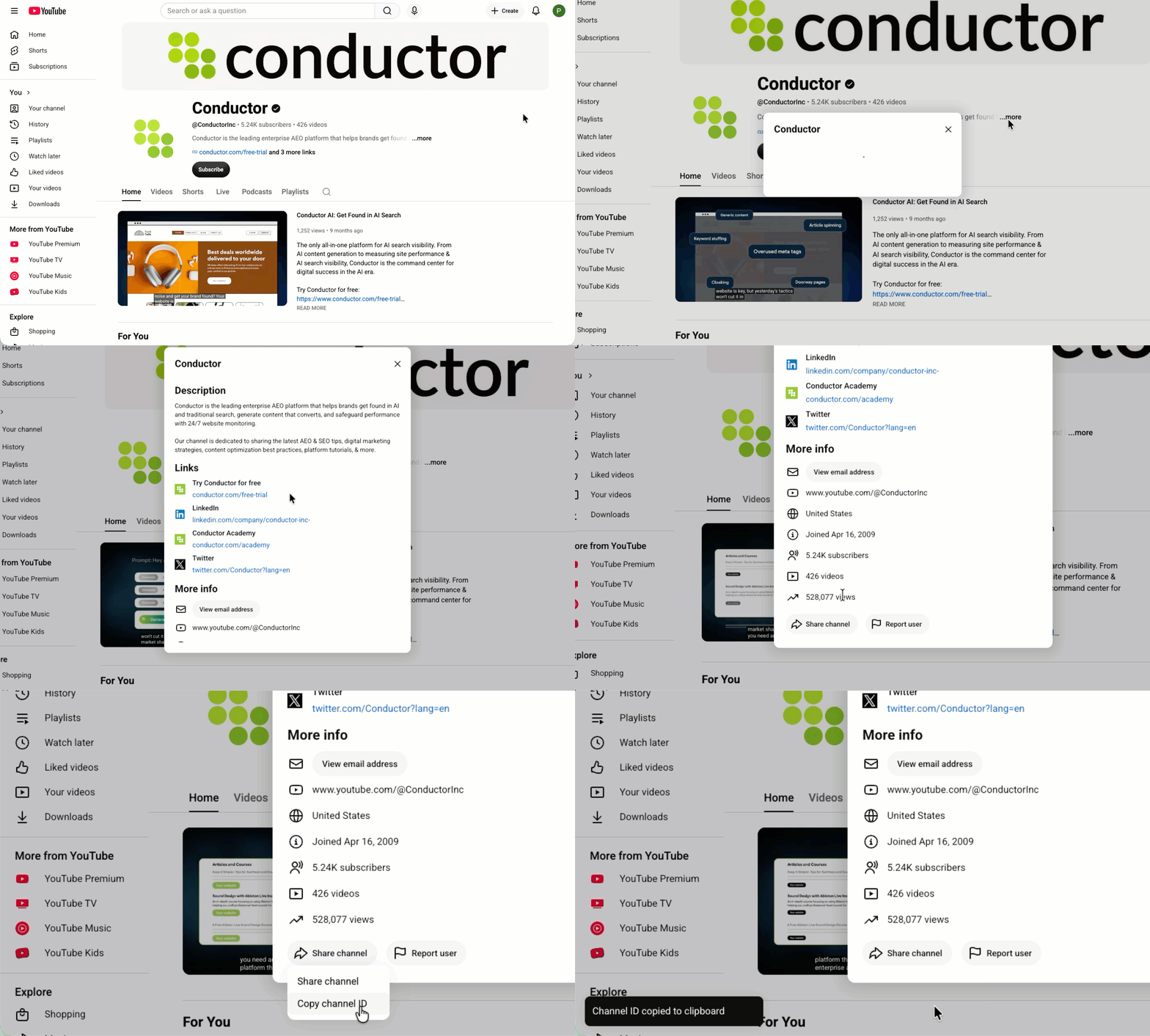
For Conductor to recognize a YouTube channel you want to track—whether as one of your web properties or as a comparison property—the format you enter should be:
**youtube.com/channel/\[Your YouTube ID]**
You can find your YouTube Channel ID on your channel home page. Click **More** in your description, then click the **Share channel** button and select **Copy Channel ID**. The ID is now on your clipboard.