> ## Documentation Index
> Fetch the complete documentation index at: https://www.conductor.com/docs/llms.txt
> Use this file to discover all available pages before exploring further.
# ChatGPT
> Set up Conductor's MCP with ChatGPT.
You can configure connections to Conductor with ChatGPT with a plugin in ChatGPT's marketplace or with a custom connector.
### Available tools
#### Custom connections to ChatGPT
Custom connections will always include the most up-to-date set of tools available, currently including:
* `tracked_configs`
* `ai_brand_insights`
* `ai_citation_insights`
* `keyword_insights`
#### Connections to Conductor's ChatGPT marketplace plugin
Connections with the native ChatGPT plugin require fewer steps, but might not include access to all tools. Currently, the following tools are *not* available in the native ChatGPT plugin on the marketplace:
* `keyword_insights`
[Learn more about the data you can access through these tools](/mcp/what-data-is-available-in-conductors-mcp).
## Configure Conductor in ChatGPT
Configuring a custom plugin in OpenAI's ChatGPT currently requires you to:
* Create an API token in the Conductor platform. Learn how: [Authenticating Custom Connections](https://www.conductor.com/docs/mcp/custom-connectors/#bearer-token-auth)
* Create a custom plugin in ChatGPT.
Please reach out to your Conductor contact if you have questions about this process.
### Verify Your ChatGPT Plan and Permissions
To set up this connection, you will need to have the ability to create plugins. Doing so requires:
* Any of ChatGPT's paid plans: **Pro**, **Plus**, **Business**, **Enterprise** and **Education.**
* Admin access.
### Configure Your Plugin in ChatGPT
Before members of **Business**, **Enterprise**, and **Education** plans can use a custom plugin, an Admin user needs to perform the following steps to add the plugin to your organization's Workspace. (If your organization uses multiple ChatGPT Workspaces, this configuration would have to be done in each.)
1. Go to [**ChatGPT**](https://chatgpt.com).
2. If you are not already, sign into the paid account you want to use to configure this integration. Be sure to use the correct account (likely an account belonging to your organization and not your personal ChatGPT account).
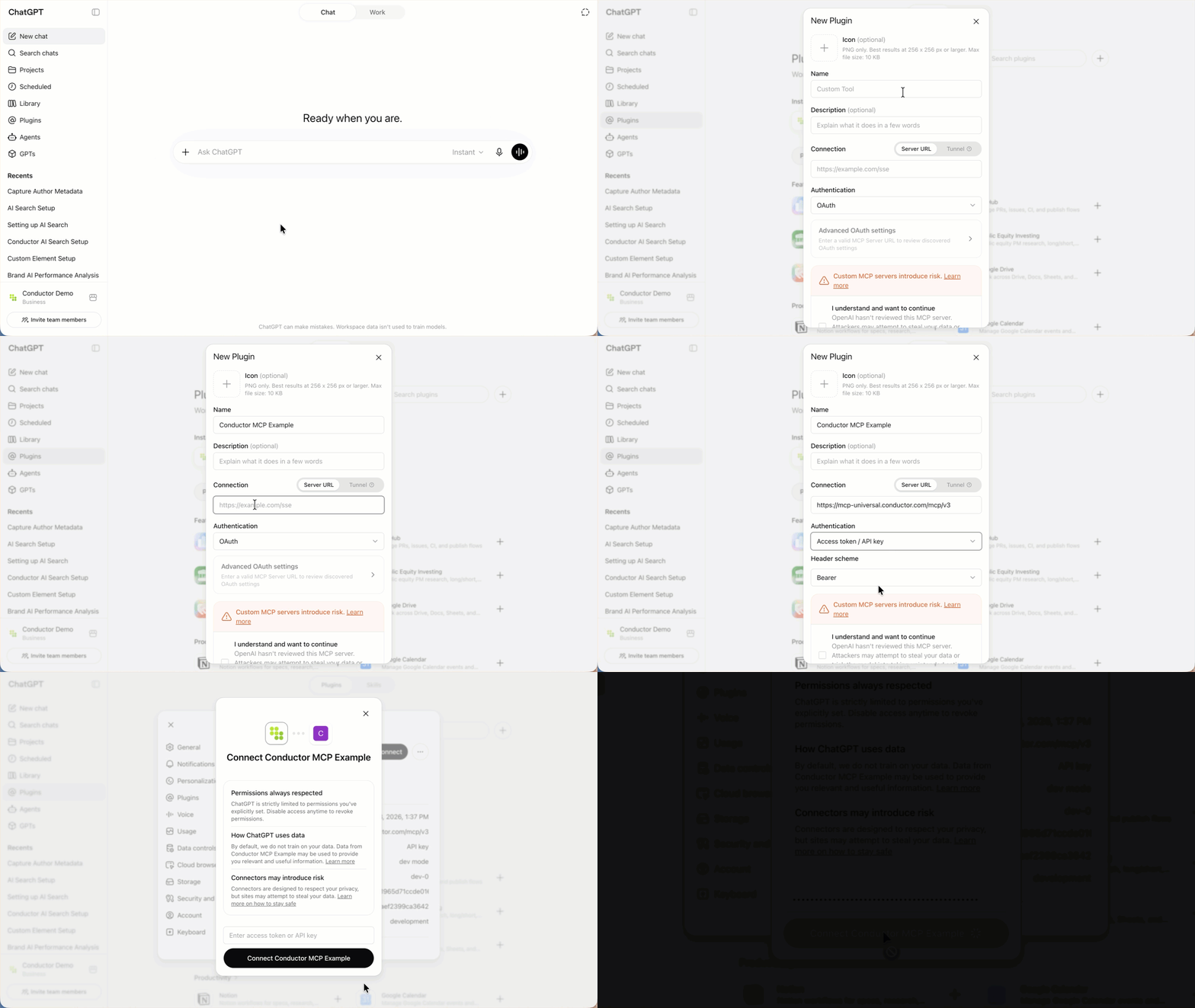
3. From the navigation on the left, click **Plugins**.
4. In the top-right, click the **Plus (+)** icon next to the search field.
5. Complete the **New Plugin** form as follows:
* **Name**: `Conductor`
* **Connection**:
* Choose **Server URL** from the toggle above the **Connection** field.
* `https://mcp-universal.conductor.com/mcp/v3`
* **Authentication**: `Access token / API key`
* Click to open the **Advanced settings** menu.
* **Access token / API key**: `YOUR_CONDUCTOR_API_TOKEN`
6. Select the **I understand and want to continue** check box.
7. Click **Create**. OpenAI will process your information, and you will be redirected to a Conductor authentication screen.
8. Authenticate using your Conductor credentials. This may take some time.
Your Workspace's connection to Conductor's MCP server is complete.
 ### Query Your Data with ChatGPT
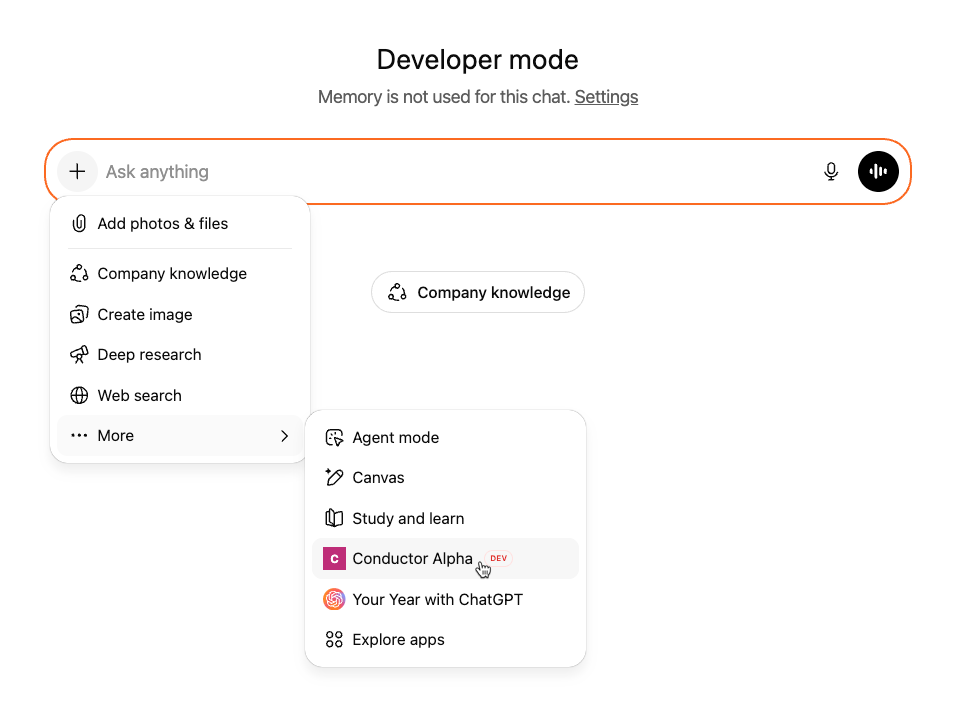
To access your data, click the **+** icon, and in the **More** menu, select your **Conductor** plugin.
### Query Your Data with ChatGPT
To access your data, click the **+** icon, and in the **More** menu, select your **Conductor** plugin.
 OpenAI allows organizations to choose whether non-Admin users may add specific Plugins and Apps to their ChatGPT accounts or whether they need to request access.
To add Conductor's plugin for ChatGPT, your organization's ChatGPT Admins might need to allow the plugin to be installed on your account.
For more information about provisioning and permissioning ChatGPT plugins, refer to [OpenAI's documentation](https://help.openai.com/en/articles/20001256-plugins-in-chatgpt-and-codex).
1. Go to [**ChatGPT**](https://chatgpt.com).
2. If you are not already, sign into the paid account you want to use to configure this integration. Be sure to use the correct account (likely an account belonging to your organization and not your personal ChatGPT account).
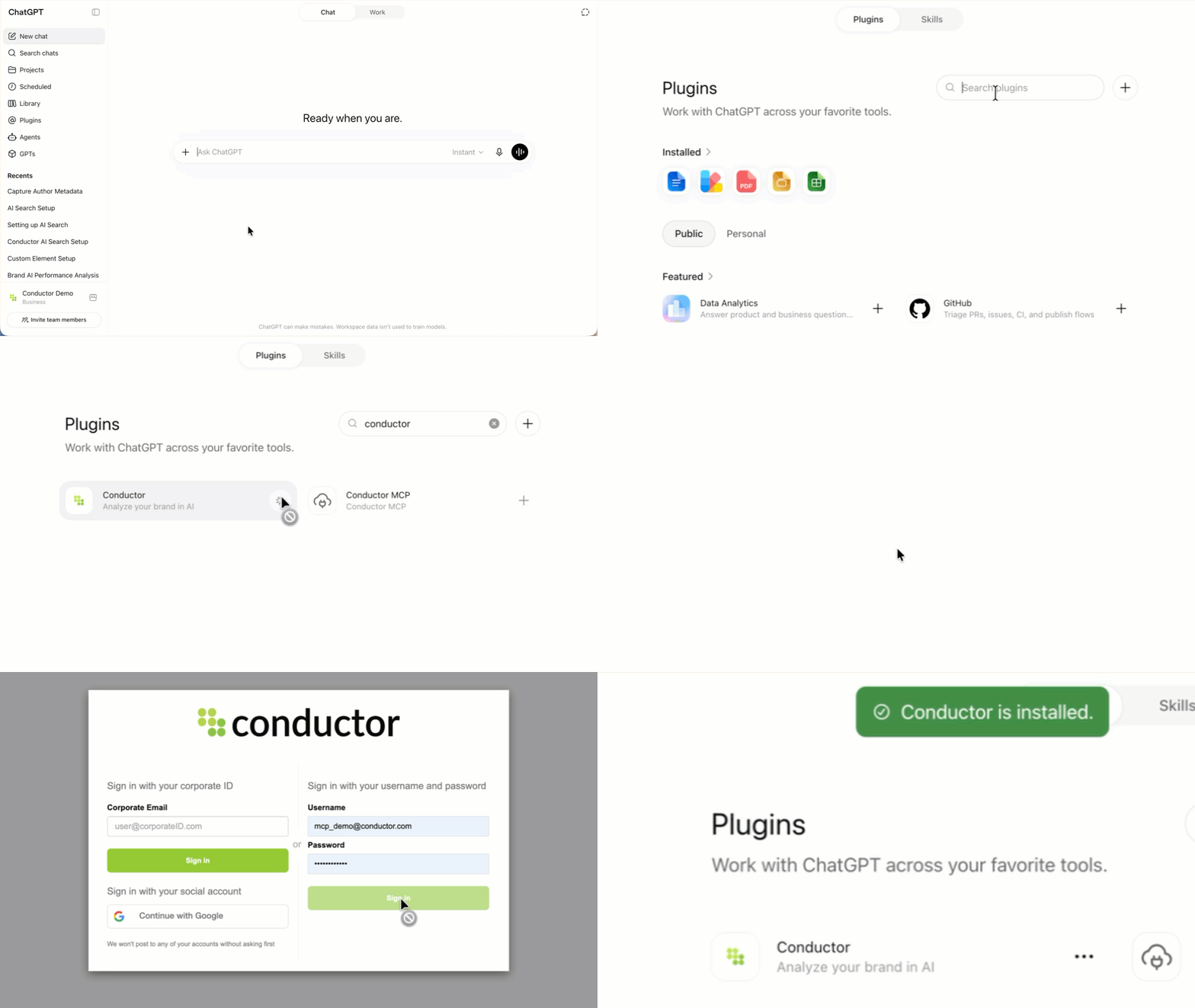
3. In the navigation menu on the left, click **Plugins**.
4. Search for and select the **Conductor** app in the **Plugins** marketplace.
5. Click **Connect**.
If you see **Disabled by admin** instead of the **Connect** button, contact your Workspace admin to enable the plugin for your organization as described above.
6. Click **Connect Conductor**. You will be redirected to a Conductor authentication screen.
7. Authenticate using your Conductor credentials.
Your Workspace's connection to Conductor's MCP server is complete.
OpenAI allows organizations to choose whether non-Admin users may add specific Plugins and Apps to their ChatGPT accounts or whether they need to request access.
To add Conductor's plugin for ChatGPT, your organization's ChatGPT Admins might need to allow the plugin to be installed on your account.
For more information about provisioning and permissioning ChatGPT plugins, refer to [OpenAI's documentation](https://help.openai.com/en/articles/20001256-plugins-in-chatgpt-and-codex).
1. Go to [**ChatGPT**](https://chatgpt.com).
2. If you are not already, sign into the paid account you want to use to configure this integration. Be sure to use the correct account (likely an account belonging to your organization and not your personal ChatGPT account).
3. In the navigation menu on the left, click **Plugins**.
4. Search for and select the **Conductor** app in the **Plugins** marketplace.
5. Click **Connect**.
If you see **Disabled by admin** instead of the **Connect** button, contact your Workspace admin to enable the plugin for your organization as described above.
6. Click **Connect Conductor**. You will be redirected to a Conductor authentication screen.
7. Authenticate using your Conductor credentials.
Your Workspace's connection to Conductor's MCP server is complete.
 ## Query Your Data with ChatGPT
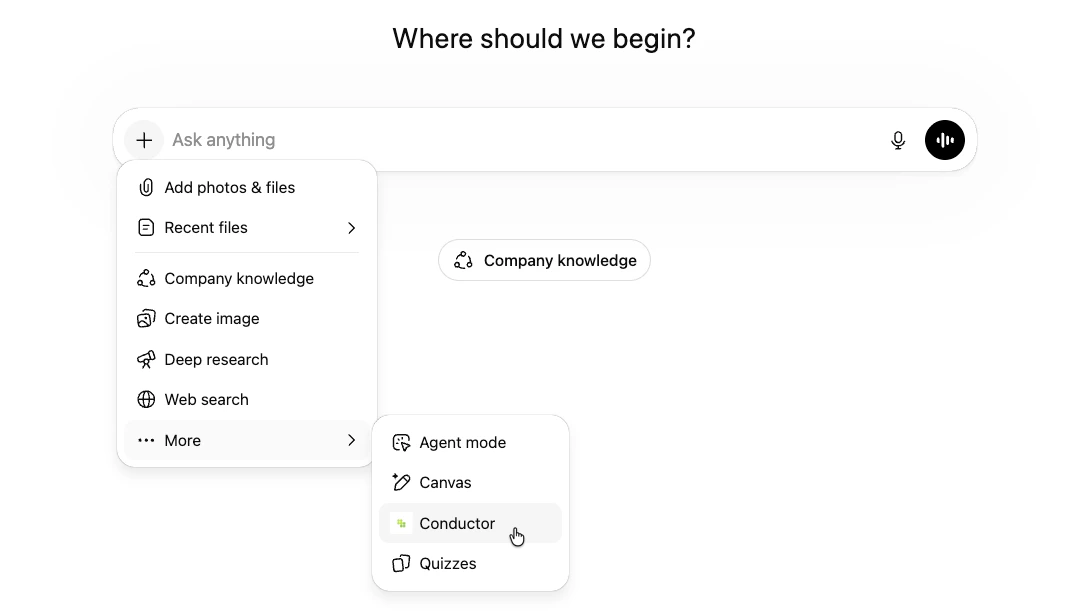
To access your data, click the **+** icon, and in the **More** menu, select your **Conductor Alpha** app.
## Query Your Data with ChatGPT
To access your data, click the **+** icon, and in the **More** menu, select your **Conductor Alpha** app.
 ## FAQs
[Review this feature's frequently asked questions](/mcp/mcp-faqs)
## FAQs
[Review this feature's frequently asked questions](/mcp/mcp-faqs)